
Discover
What we do
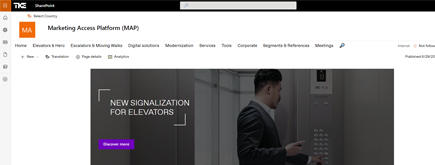
TKE SharePoint rebranding
TKE, a global elevator leader, consulted with NIFTIT to overhaul their SharePoint site for the Asia Pacific team. Enhanced search, mobile usability, and multilingual interface ignited innovation.
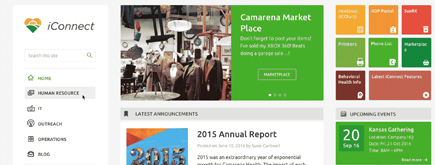
Camarena Health
NIFTIT's expertise in advanced UI/UX design combined with the functionality of Microsoft 365 transformed Camarena Health's digital landscape, driving efficiency and engagement.
The New York Metropolitan Transportation Council (NYMTC)
Discover how NIFTIT improved data access and enhanced collaboration for NYMTC by leveraging SharePoint, optimizing data connections, and orchestrating business automation workflows.
NIFTIT LLC
85 Delancey St, 2nd Floor, New York, NY 10002, USA 1-848-272-0977
Decommission the Last Exchange Server: Real Hybrid Lessons
By
 Philac N.
Published a day ago
~10 minute read

"All our mailboxes are in Exchange Online. Can we turn off the Exchange server now?" We hear this in almost every hybrid tenant we take on, and the honest answer is usually "not yet."
In a synchronized hybrid environment, the last on-premises Exchange server often still manages Exchange attributes, relays SMTP for printers and applications, carries hybrid mail flow, publishes Autodiscover to domain-joined clients, and supports mail-enabled groups and contacts. Removing it safely is not a server shutdown. It is a dependency-removal and source-of-authority project.
This article walks through a real Exchange Server 2019 hybrid decommissioning project we are running for an organization with more than 3,000 Exchange Online mailboxes. Client details have been removed. Discovery, mailbox cleanup, and the mailbox-level transfer of Exchange attribute management are done. Group strategy, hybrid cleanup, final validation, and the uninstall itself are still ahead, and we will be clear about which is which.
Why "all mailboxes are in the cloud" is not enough
Microsoft now supports managing Exchange attributes in Exchange Online for directory-synchronized users. That removes the classic reason for keeping an Exchange server around. But it only solves one dependency. Before uninstall, each of these needs an answer:
- Recipient management: who changes aliases, address-list visibility, and custom attributes once the server is gone?
- SMTP relay: which printers, scanners, and applications still send through an on-premises receive connector?
- Mail flow: is outbound internet mail still routed through the on-premises organization?
- Autodiscover: are domain-joined Outlook clients still finding a stale on-premises endpoint?
- Groups and contacts: who will manage them, and where?
- Future provisioning: what happens when HR onboards the next employee?
Step 1: Build an evidence baseline first
Before changing anything, we documented the environment end to end:
- Exchange edition, version, and roles
- The Hybrid Configuration object, Organization Relationships, and Intra-Organization Connectors
- Entra Connect synchronization status and schedule
- Mailbox counts in Exchange Online and on premises
- Public folders
- Send and receive connectors and SMTP relay candidates
- MX, Autodiscover, and SPF records
- The expected administrative model after Exchange is gone
The good news came quickly. Synchronization was healthy: delta sync was scheduled, the service was not suspended, and the server was not in staging mode. Public MX and Autodiscover already pointed to Microsoft 365, SPF did not reference the Exchange server, and there were no public folders, which removed a common uninstall blocker.
Public DNS was not the full picture, though. Domain-joined Outlook clients can query the Autodiscover Service Connection Point (SCP) in Active Directory before they ever look at DNS, so internal DNS and the SCP went on the list too.
Step 2: Treat SMTP relay as its own workload
SMTP relay is the most common hidden dependency on a last Exchange server. Printers, scanners, monitoring tools, scheduled jobs, line-of-business apps, and older appliances keep sending through on-premises receive connectors long after users have moved.
In this project, a custom receive connector traced back to a retired application. We disabled it and verified nothing broke. A wider review of connectors and anonymous relay permissions did not reveal another active relay path.
That is progress, not a sign-off. Exchange Setup removes receive connectors during uninstall, so any relay we missed will simply stop working. Right before uninstall, we will check connector configuration, protocol logs, application owners, and known device IP ranges again. A disabled connector is evidence. A successful test from every known device and application is stronger evidence.
Step 3: Clean up mailbox edge cases before changing authority
A simple mailbox count hides a lot. Our on-premises sweep found:
- A stale linked mailbox from a retired communications platform, which we removed.
- A "local" mailbox that had already been migrated to Exchange Online.
- A disconnected, cloud-only duplicate mailbox for a synchronized user. We removed the duplicate and reconnected the AD account to the correct Exchange Online mailbox using the supported remote-mailbox workflow.
- A legacy admin mailbox, reviewed for dependencies and archive content, then disabled.
After remediation, no active on-premises user mailboxes remained, only known system objects that Setup handles during uninstall.
These cases matter because duplicate recipients, mismatched Exchange GUIDs, disconnected mailboxes, and overlooked archives can break mail routing or block Exchange Setup. Before moving authority, confirm that primary SMTP addresses, Exchange GUIDs, recipient types, remote-mailbox state, aliases, and archive state agree on both sides. If a remote mailbox was just created or repaired, let synchronization and backend processing finish first.
Step 4: Move Exchange attribute authority in stages
Setting IsExchangeCloudManaged to true on a mailbox moves the source of authority for supported Exchange attributes to Exchange Online. Identity attributes stay with on-premises Active Directory. That distinction is easy to miss:
- Identity attributes, such as name and core directory properties, are still managed in AD and synchronized by Entra Connect.
- Exchange attributes, such as proxy addresses, address-list visibility, and supported custom attributes, are managed in Exchange Online after the transfer.
- The user does not become cloud-only. Only Exchange attribute management moves.
Per mailbox, the change itself is simple in Exchange Online PowerShell:
Set-Mailbox -Identity user@contoso.com -IsExchangeCloudManaged $true
Get-Mailbox -Identity user@contoso.com | Format-List IsExchangeCloudManaged
The work is in the sequence around it. We ran it in four stages:
- Confirm prerequisites, including that organization customization was enabled.
- Export a baseline of Exchange-related AD attributes for every directory user, for recovery and comparison.
- Pilot five mailboxes and validate the result.
- Run the bulk transfer for the rest of the population.
Most mailboxes transferred on the first pass. A small set failed because our script addressed recipients by alias, and the same alias existed in more than one accepted domain. These were genuine identity ambiguities, not corrupt data. Retrying with full SMTP addresses fixed every one of them. We also held back one recently repaired remote mailbox so synchronization could settle before its transfer.
Two lessons came out of this stage:
- A clean pilot does not prove identities are unique across the whole tenant.
- Use unambiguous identifiers in bulk scripts. Aliases are convenient, but they are not guaranteed to be unique across accepted domains. Full SMTP addresses or object IDs are safer.
Step 5: Plan groups and contacts as a separate workstream
IsExchangeCloudManaged covers mailboxes only. It does not transfer authority for distribution groups, mail-enabled security groups, or mail contacts. Microsoft handles those through separate Group and Contact source-of-authority transfers.
This environment has more than 200 distribution groups, so groups are their own workstream. Before changing group authority, inventory and classify:
- Distribution groups, mail-enabled security groups, and dynamic distribution groups
- Nested groups
- Groups used for authorization as well as email
- Owners and membership-management processes
- Applications or scripts that update membership in AD
- Group attributes or extension attributes that must be kept
Test group conversion carefully. Current Microsoft guidance lists real limitations, including no reconciliation of local AD changes after cloud authority is set, special handling for nested groups, and no support for extension attributes 1 through 15 on converted cloud security groups. Mailbox success is not the same as finishing recipient-management migration.
Step 6: Keep Entra Connect unless your identity design changes
Removing the last Exchange server does not mean replacing Entra Connect Sync with Entra Cloud Sync. Here, on-premises AD stays the source of authority for identity, so Entra Connect keeps doing its job.
Cloud Sync matters for a narrower reason: Exchange attribute writeback. Microsoft supports using Cloud Sync to write selected Exchange attributes changed in Exchange Online back to AD. You only need it if something on premises reads those values, such as proxyAddresses, mail, or extension attributes.
We treat this as a business decision, not a default:
- No local consumer (applications, identity workflows, reports, phone systems, HR platforms, scripts)? Skip writeback and avoid the extra complexity.
- A confirmed local consumer? Design, pilot, monitor, and validate writeback before Exchange is removed.
We are still waiting on application owners for the final answer, so writeback is a pending decision.
Step 7: Define how new mailboxes will work
Transferring existing mailboxes does not decide what happens to the next new hire. Microsoft's last-server guidance calls for a tenant-wide Exchange attribute setting when on-premises AD keeps provisioning users, so new Exchange Online mailboxes are cloud-managed by default instead of needing a per-mailbox transfer later. We are documenting that setting and the matching procedure now.
The operational runbook should cover how administrators will:
- Create and sync a new user and assign an Exchange Online license
- Confirm the mailbox is provisioned and cloud-managed
- Add or remove aliases
- Create and manage shared and resource mailboxes
- Manage distribution groups and mail contacts
- Handle leavers, restores, renames, and mailbox conversions
- Escalate sync or authority problems
Decommissioning is not finished when the server disappears. It is finished when routine administration works predictably without it.
Step 8: Close the mail flow and hybrid gates
These are the highest-risk steps, and none should be rushed.
- Centralized Mail Transport: if it is enabled, Exchange Online sends outbound internet mail through on-premises Exchange. Remove the server in that state and outbound mail breaks. Disable it first, ideally through the Hybrid Configuration Wizard. In this project, its state still has to be confirmed.
- Autodiscover SCP: clear the on-premises SCP and validate internal resolution. Public DNS pointing to Microsoft 365 does not override a stale SCP for domain-joined clients.
- Hybrid objects and connectors: export, then remove in sequence the Hybrid Configuration object, Intra-Organization Connectors, Organization Relationships, HCW-created connectors, and migration endpoints. Only delete objects that HCW created or that you have confirmed are unused.
- Accepted domains: a domain set to Internal Relay for coexistence may need to become Authoritative once you are cloud-only.
After every mail flow change, test internal and external mail, shared and resource mailbox access, distribution group expansion and moderation, device and application relay, Autodiscover from inside and outside the network, free/busy while hybrid features remain, and message tracing.
Where the project stands
Done:
- Hybrid discovery and configuration baseline
- Healthy Entra Connect synchronization confirmed
- No active on-premises user mailboxes and no public folders
- Legacy relay connector disabled and relay configuration reviewed
- Mailbox edge cases resolved
- AD attribute backup taken
- Pilot and bulk Exchange attribute transfer completed, including the alias-collision retries
Still ahead:
- Transfer for the one held-back remote mailbox
- Tenant-wide setting for new mailboxes
- Group and contact authority strategy
- Cloud Sync writeback decision
- Centralized Mail Transport confirmation, SCP clearing, and hybrid cleanup
- End-to-end mail flow and operational testing
- Supported Exchange Setup uninstall and post-uninstall monitoring
The server has not been uninstalled, and we will not call this project complete until every gate above is closed.
The risks we watch most closely
- Relay outage: a forgotten printer or alerting service stops sending.
- Outbound mail outage: Centralized Mail Transport still points at a server that no longer exists.
- Management gaps: mailboxes are cloud-managed, but groups, contacts, or new users have no defined process.
- Broken attribute consumers: an on-premises app reads AD values that are no longer updated.
- Identity ambiguity: bulk scripts match on aliases or display names that are not unique.
- Premature cleanup: hybrid objects are removed before mail flow paths are understood.
- Unsupported removal: the VM is deleted or powered off instead of running Exchange Setup, leaving configuration behind in AD.
The takeaway
Moving thousands of mailboxes to cloud-managed Exchange attributes, while keeping on-premises AD and Entra Connect for identity, works. The hard part is everything around it: legacy relay connectors, stale mailbox types, duplicate cloud objects, ambiguous aliases, groups with their own authority model, and applications that quietly read from AD.
Success is not "the server is off." Success is when every dependency has an approved destination, every admin task has a supported owner, mail flow has been proven without the server, and Exchange Setup has removed it cleanly.
If you are still running a last Exchange server "just for management," or you are not sure what still depends on it, talk to NIFTIT. We help small and mid-sized organizations assess hybrid dependencies, plan the source-of-authority transition, and retire Exchange on premises without surprises. You can also read our Intune and Exchange Hybrid success story for how we approach hybrid environments from the start.
Sources: Microsoft Learn, "Decommission the last Exchange Server after transferring SOA to cloud," "Cloud-based management of Exchange attributes for Remote Mailboxes in hybrid environments," and "Configure Group Source of Authority (SOA) in Microsoft Entra ID." Microsoft hybrid guidance changes often, so recheck current procedures and syntax before making production changes.