
Discover
What we do
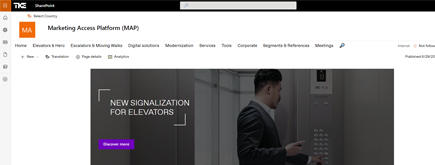
TKE SharePoint rebranding
TKE, a global elevator leader, consulted with NIFTIT to overhaul their SharePoint site for the Asia Pacific team. Enhanced search, mobile usability, and multilingual interface ignited innovation.

Camarena Health
NIFTIT's expertise in advanced UI/UX design combined with the functionality of Microsoft 365 transformed Camarena Health's digital landscape, driving efficiency and engagement.

The New York Metropolitan Transportation Council (NYMTC)
Discover how NIFTIT improved data access and enhanced collaboration for NYMTC by leveraging SharePoint, optimizing data connections, and orchestrating business automation workflows.
NIFTIT LLC
85 Delancey St, 2nd Floor, New York, NY 10002, USA 1-848-272-0977
Migrating Email Between IMAP Servers with imapsync
By
 Philac N.
Published 3 months ago
~5 minute read

When it comes to migrating email between mailboxes, most people think of exporting and importing - downloading everything locally, then re-uploading it. It works, but it's slow, disk-hungry, and ties up your machine for days. There's a better way: server-to-server migration with imapsync.
What is imapsync?
imapsync is an open-source command-line tool written in Perl that copies emails directly from one IMAP server to another. Your local machine acts only as the orchestrator - the actual data flows server-to-server. No local storage needed, no mail client required.
It's available on Linux, macOS, and Windows, and handles folders, flags, read/unread status, and internal dates - so the migrated mailbox looks exactly like the original.
Installing imapsync
On macOS:
brew install imapsync
On Ubuntu/Debian (from source):
git clone https://github.com/imapsync/imapsync.git /opt/imapsync
apt-get install libauthen-ntlm-perl libmail-imapclient-perl   libio-socket-ssl-perl libencode-imaputf7-perl libdigest-hmac-perl   libfile-copy-recursive-perl libio-tee-perl libjson-webtoken-perl   libnet-ssleay-perl libterm-readkey-perl libunicode-string-perl
Basic Usage
The simplest migration is a single command:
imapsync \
  --host1 imap.oldprovider.com --ssl1 --port1 993 \
  --user1 user@olddomain.com --password1 'yourpassword' \
  --host2 imap.newprovider.com --ssl2 --port2 993 \
  --user2 user@newdomain.com --password2 'yourpassword'
imapsync will:
- Connect to both servers simultaneously
- Enumerate all folders on the source
- Copy each message by UID, preserving flags and dates
- Skip messages already present on the destination
- Log everything to a file in
LOG_imapsync/
Key Features
Resumable: If the process is interrupted for any reason - network drop, server timeout, power loss - simply re-run the exact same command. imapsync checks UIDs on the destination and skips already-copied messages. No duplicates, no re-transfers.
Incremental sync: Because it skips existing messages, you can run it multiple times. A common pattern is to run it once to bulk-copy everything, then run it again on cutover day to catch emails that arrived during the migration window.
Folder mapping: If the source and destination use different folder naming conventions, imapsync can remap them on the fly with --regextrans2.
Dry run: Use --dry to simulate the migration without copying anything - useful for estimating time and checking connectivity before committing.
Progress and ETA: imapsync prints live progress including messages per second, data transferred, and an estimated completion time per folder.
Password Handling and Special Characters
If your password contains special shell characters like !, $, or &, always use single quotes in the shell:
--password1 'MyP@ss$word!'
Alternatively, use --passfile to store the password in a plain text file and pass the file path instead. This avoids any shell interpretation entirely and is the safest approach when running from scripts:
echo 'MyP@ss$word!' > /root/pass1.txt
imapsync --passfile1 /root/pass1.txt ...
Running on a Remote Server
For large mailboxes with tens of thousands of emails, running imapsync on a remote Linux server rather than your local machine has several advantages:
- Your laptop doesn't need to stay on for hours or days
- Server-to-server connections are typically faster and more stable
- You can detach and reconnect without interrupting the migration
The recommended approach is to run it with nohup so it survives SSH disconnects:
nohup /opt/imapsync/imapsync [options] >> /root/migration.log 2>&1 &
Then monitor progress from anywhere with:
tail -f /root/migration.log
Or use screen/tmux to keep an interactive session:
screen -S mailmigration
/opt/imapsync/imapsync [options]
# Ctrl+A then D to detach, screen -r mailmigration to reattach
Planning a Zero-Downtime Migration
The safest migration sequence when moving to a new mail provider:
- Create the new mailbox (optionally under a temporary domain to avoid touching DNS)
- Run imapsync to copy all existing email
- Verify the new mailbox looks correct
- Run imapsync a second time to catch any email received during step 2
- Update MX records to point to the new provider
- Optionally run imapsync one final time to catch email delivered during the DNS TTL window
This approach keeps the original mailbox fully operational until the very last step. There is no downtime and no risk of lost email during the transition.
Moving hundreds of mailboxes safely takes planning beyond a single command. Our Microsoft 365 migration and deployment services team runs mail migrations with minimal downtime.
Useful Flags
| Flag | Description |
|---|---|
--dry |
Simulate without copying anything |
--nofoldersizes |
Skip the folder sizing pass (faster start, no ETA) |
--noresyncflags |
Don't re-sync read/unread flags on already-copied messages |
--exclude |
Exclude specific folders by regex (e.g. --exclude Trash) |
--maxsize |
Skip messages larger than N bytes |
--minage |
Only copy messages older than N days |
--maxage |
Only copy messages newer than N days |
--logfile |
Set a custom log file path |
--nolog |
Disable logging entirely |
Useful Commands for Monitoring
Check live progress:
tail -f /root/LOG_imapsync/migration.log
Check if the process is still running:
ps aux | grep imapsync | grep -v grep
Count messages copied so far:
grep "copied to" /root/LOG_imapsync/migration.log | wc -l
Performance
On a typical VPS with a stable network connection, imapsync achieves around 1-2 messages per second. For a mailbox with 60,000 messages totalling ~5 GB, expect roughly 8-20 hours depending on average message size. Mailboxes with many large attachments will be slower per-message but faster per-gigabyte.
The biggest performance factor is message size, not message count. A folder of 1,000 emails with large attachments will take longer than a folder of 10,000 small messages.
Moving your organization's email to Microsoft 365? We plan and run mailbox migrations with no downtime. Talk to our migration team.