
Discover
What we do
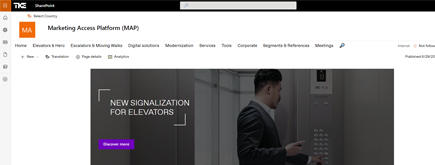
TKE SharePoint rebranding
TKE, a global elevator leader, consulted with NIFTIT to overhaul their SharePoint site for the Asia Pacific team. Enhanced search, mobile usability, and multilingual interface ignited innovation.
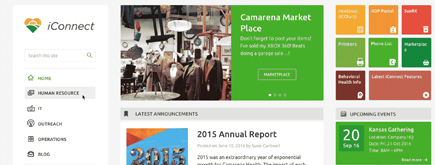
Camarena Health
NIFTIT's expertise in advanced UI/UX design combined with the functionality of Microsoft 365 transformed Camarena Health's digital landscape, driving efficiency and engagement.
The New York Metropolitan Transportation Council (NYMTC)
Discover how NIFTIT improved data access and enhanced collaboration for NYMTC by leveraging SharePoint, optimizing data connections, and orchestrating business automation workflows.
NIFTIT LLC
85 Delancey St, 2nd Floor, New York, NY 10002, USA 1-848-272-0977
Microsoft 365 Copilot Optimize: Fix What Holds Copilot Back
By
 Philac N.
Published 9 hours ago
~5 minute read

A few weeks after a Copilot rollout, we often hear the same thing: "We bought the licenses, but people say it is not that useful." When we look under the hood, the problem is rarely the AI. It is the tenant. Meeting transcription is off, Office apps are on a slow update channel, web search is blocked, and nobody has connected the business systems where the real data lives.
Microsoft now has a dedicated tool for finding these gaps. Copilot Optimize is an experience in the Microsoft 365 admin center that reviews the tenant settings that shape how employees experience Copilot, and recommends what to look at. This article explains what it covers, which settings deserve your attention, and how we suggest working through them.
What Copilot Optimize does
Copilot Optimize gives IT administrators one place to see the configuration that sits behind Copilot. A license makes Copilot available to a user. It does not guarantee that the features they expect will work, because existing policies, disabled services, or app configuration can quietly limit what Copilot can do.
Copilot Optimize surfaces those limits and pairs them with recommendations. You find it in the Copilot area of the Microsoft 365 admin center. Microsoft is still evolving the experience, so the exact layout and list of checks may differ in your tenant.
Why configuration decides whether Copilot feels useful
Picture a firm that rolls out Copilot to 100 employees. Everyone can open it, but:
- Meeting transcription is disabled, so Copilot cannot recap Teams meetings or pull out action items.
- Microsoft 365 Apps are on a delayed update channel, so newer Copilot features arrive months late.
- Web search is restricted, so Copilot cannot answer questions about current events or market news.
- Advanced agents are turned off for everyone.
- No external data is connected, so Copilot only knows what lives in Microsoft 365.
Employees try it, get thin answers, and decide Copilot is not worth the effort. The investment looks like a failure, when the real issue is a handful of settings.
The settings worth reviewing
1. Web search
Letting Copilot use current public web content improves answers about recent events, vendors, regulations, and market research. Before turning it on, confirm it fits your security and data policies, especially if your firm handles sensitive client matters.
2. Teams meeting transcription
Many of the most valued Copilot experiences depend on transcription: meeting recaps, decisions, action items, and finding what was said last week. If transcription is off by policy, those experiences are limited or unavailable. Review your recording and transcription policies alongside any client confidentiality or retention requirements.
3. Microsoft 365 Apps update channels
Copilot features in Word, Excel, Outlook, and PowerPoint ship continuously. Devices on a delayed or unsupported channel will not see new capabilities when Microsoft announces them. Check that your deployment channel matches the features you plan to roll out.
4. Copilot agents
Microsoft offers prebuilt agents for deeper work, such as multi-step research and data analysis. You decide who can use them. A sensible approach is to enable them for a pilot group first rather than everyone at once.
5. Copilot connectors
Connectors let Copilot work with content from supported systems outside Microsoft 365, so users can find information across the business in one place. This is often where the biggest value sits, and also where permissions need the most care. Copilot respects the access you configure, so configure it deliberately.
6. Additional AI models, including Anthropic
Microsoft is adding support for models from other providers, including Anthropic, in certain Copilot experiences. Availability depends on the feature, your licensing, and tenant settings. Review where data is processed and how it fits your compliance commitments before you allow another provider.
7. Usage-based billing
Some advanced Copilot experiences are billed by consumption. Know which features can generate charges and put spending controls in place before you enable them. Our article on Copilot pay-as-you-go billing policies walks through how this billing works and how to keep it under control.
Does Copilot Optimize fix everything for you?
No. Copilot Optimize gives you visibility and recommendations. It does not replace sound Microsoft 365 administration, security reviews, or governance.
The goal is not to turn on every recommendation. Enabling everything without review can add cost or conflict with internal policy. The goal is to enable the capabilities that deliver business value, with the right controls around them.
One more caution: the more Copilot can reach, the more your existing permissions matter. If SharePoint and Teams content is overshared, Copilot will surface it to anyone who has access. Our article on SharePoint Advanced Management covers how to find and fix oversharing before you widen Copilot's reach.
A practical way to get started
We recommend a simple, repeatable process:
- Review your current configuration. Open Copilot Optimize and note every setting it flags.
- Prioritize by business value. Start with features employees already use or are asking for, such as meeting recaps.
- Check security and compliance. Validate permissions, external integrations, data handling, and billing exposure for each change.
- Pilot before you scale. Apply changes to a small group and confirm the experience works as expected.
- Monitor and revisit. Copilot changes every month. Treat optimization as an ongoing task, not a one-time project.
The takeaway
Deploying Copilot is the beginning, not the finish line. Copilot Optimize gives IT teams a structured way to find the configuration gaps that make Copilot feel underwhelming, and to close them on purpose rather than by accident.
If your Copilot rollout is not delivering what you expected, or you want a readiness review before you buy more licenses, talk to NIFTIT. We help small and mid-sized organizations review their Microsoft 365 configuration, tighten permissions, and pilot Copilot features so the investment pays off.
Source: Microsoft Learn, "Optimize Microsoft Copilot configuration settings."