
Discover
What we do
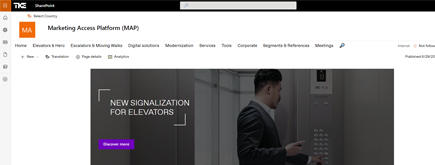
TKE SharePoint rebranding
TKE, a global elevator leader, consulted with NIFTIT to overhaul their SharePoint site for the Asia Pacific team. Enhanced search, mobile usability, and multilingual interface ignited innovation.
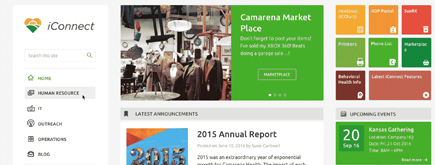
Camarena Health
NIFTIT's expertise in advanced UI/UX design combined with the functionality of Microsoft 365 transformed Camarena Health's digital landscape, driving efficiency and engagement.
The New York Metropolitan Transportation Council (NYMTC)
Discover how NIFTIT improved data access and enhanced collaboration for NYMTC by leveraging SharePoint, optimizing data connections, and orchestrating business automation workflows.
NIFTIT LLC
85 Delancey St, 2nd Floor, New York, NY 10002, USA 1-848-272-0977
Migrating SharePoint Lists with Metadata: Challenges Sharegate Won't Tell You About
By
 Philac N.
Published 3 months ago
~9 minute read

SharePoint list migration sounds straightforward - copy items, done. But when you're migrating across site collections or tenants, you quickly discover a class of problems that tools like Sharegate can't reliably solve: lookup fields that silently break, user fields that point to the wrong tenant, and views that lose their column order.
This post covers what we learned migrating 20+ SharePoint lists for a real client, using PnP PowerShell, and why we ended up writing custom scripts instead of relying on a migration tool.
The Pattern That Predicts Problems
Here's how most SharePoint list migrations actually unfold:
Phase 1: The Easy Part
- Items copied to destination
- Content looks right at first glance
- Migration declared complete
Phase 2: The Reality Check
- Lookup columns appear empty or broken
- User fields point to wrong accounts
- Views lose their column order
- Business data is silently wrong
Phase 3: The Scramble
- Teams report missing data
- Support tickets pile up
- Re-migration attempts create duplicates
- "Migration tools don't work" becomes the narrative
This isn't a tooling problem. It's a dependencies problem.
The Scenario
Client: A professional services firm (anonymized)
Task: Migrate a Corporate People SharePoint site to a new People site collection, preserving all data, metadata, views, and column order.
Lists involved: Certifications and Trainings, Nominations, LMS Courses, Resume Confirmed Logs, New Employee Onboarding, and 15 others.
Tool used: PnP PowerShell (Connect-PnPOnline, Get/Add/Set-PnPListItem, etc.)
The Five Challenges That Break Silent Migrations
1. Lookup Fields and the GUID Problem
The problem: Lookup fields in SharePoint store a reference to the source list by its internal GUID. When you create a lookup field on Site A pointing to List X, the field stores List X's GUID from Site A.
When you migrate that list to Site B, the field still carries Site A's GUID. SharePoint silently accepts writes to the field but never resolves the lookup - the column appears empty or broken.
What drives scope:
- Any list with a lookup column pointing to another list
- Cross-site collection migrations
- Tenant-to-tenant migrations where lists land in new site collections
The fix: Always delete and recreate lookup fields at the destination after migration, using the destination list's GUID.
$dstList = Get-PnPList -Identity "Reference List" -Connection $dstConn
$guid = $dstList.Id.ToString()

Remove-PnPField -List $listTitle -Identity "LookupColumn" -Force -Connection $dstConn

$xml = "<Field Type='Lookup' DisplayName='Lookup Column' List='{$guid}' ShowField='Title' Name='LookupColumn' StaticName='LookupColumn' />"
Add-PnPFieldFromXml -List $listTitle -FieldXml $xml -Connection $dstConn
Sharegate behavior: Sharegate recreates lookup fields but does not guarantee the GUID points to the correct list when lists move to a different site collection. You may not notice until users report blank columns.
NIFTIT rule: Never assume a lookup field survived a site collection boundary. Always verify GUIDs post-migration and recreate if needed.
2. CSOM Object Staleness (FieldLookupValue / FieldUserValue)
The problem: When you read a SharePoint list item using PnP PowerShell, lookup and user values are returned as CSOM objects - FieldLookupValue, FieldUserValue. These objects are tied to the active connection context.
Once you switch connections - for example, from source to destination - those CSOM objects become stale. If you try to read .LookupId or .Email after switching, you get the type name as a string instead of the actual value, with no error thrown. This is one of the most subtle bugs in PnP-based migrations - it produces no error and the data silently comes through as null or a type name string.
What drives scope:
- Any migration script that switches connections mid-loop
- Multi-site operations using
-ReturnConnection - Scripts reading lookup or user fields after a context change
The fix: Resolve all field values immediately while the source connection is still active.
# Wrong approach - resolving after connection switch
$srcItems = Get-PnPListItem -List $listTitle -Connection $srcConn
$dstConn = Connect-PnPOnline ...   # context switch here
foreach ($item in $srcItems) {
    $item["Resume"].LookupId   # returns "Microsoft.SharePoint.Client.FieldLookupValue"
}

# Right approach - resolve before switching connections
$srcItems = @(Get-PnPListItem -List $listTitle -Connection $srcConn)
$resolved = foreach ($item in $srcItems) {
    $lv = $item["Resume"]
    @{
        Title    = $item["Title"]
        ResumeId = if ($lv -is [Microsoft.SharePoint.Client.FieldLookupValue]) { $lv.LookupId } else { $null }
    }
}
# Now safe to switch connections
$dstConn = Connect-PnPOnline ...
NIFTIT rule: If your migration script touches multiple site connections, resolve all field values before the first connection switch. Silent null data is harder to find than an error.
3. Cross-Tenant User Field Resolution
The problem: When migrating between tenants - or between domains within a tenant - user fields store the source email address. At the destination, SharePoint resolves users by LoginName, not by email.
Writing the source email directly to a People Picker field at the destination triggers a user-not-found error. Worse - if you catch that error and retry without the user field, the item saves but the People column is blank forever.
What drives scope:
- Migrations between tenants with different domains
- Domain consolidations or rebranding
- Any People Picker field in a migrated list
The fix: Build an email -> LoginName map from destination users before copying any data.
$emailToLoginName = @{}
Get-PnPUser -Connection $dstConn | ForEach-Object {
    if ($_.Email) { $emailToLoginName[$_.Email.ToLower()] = $_.LoginName }
}

# When writing items:
$email = $srcItem["AssignedTo"].Email
$loginName = if ($emailToLoginName.ContainsKey($email.ToLower())) {
    $emailToLoginName[$email.ToLower()]
} else { $email }
$fieldValues["AssignedTo"] = $loginName
Sharegate behavior: Sharegate supports user mapping via a CSV file, but it must be configured before migration. If you discover the domain mismatch after the fact, you need to re-run or patch manually.
NIFTIT rule: Map destination users before writing a single item. An empty People Picker field that fails silently is indistinguishable from missing data.
4. Lookup ID Remapping via Filename
The problem: List item IDs are not preserved during migration. If List A has a lookup pointing to item ID 42 in a document library, after migration that document library item may have ID 87 at the destination.
For our document library - items were copied with new IDs. Any lookup field pointing to those IDs was broken.
What drives scope:
- Any list with a lookup pointing into a document library
- Libraries migrated as part of the same batch
- Any integration or workflow relying on SharePoint item IDs
The fix: Build a source ID -> destination ID map using the filename (FileLeafRef) as the stable key.
# Build map
$srcItems = Get-PnPListItem -List "Document Library" -Connection $srcConn
$dstItems = Get-PnPListItem -List "Document Library" -Connection $dstConn

$dstFilenameToId = @{}
foreach ($r in $dstItems) { $dstFilenameToId[$r["FileLeafRef"]] = [int]$r.Id }

$fileIdMap = @{}
foreach ($r in $srcItems) {
    $fn = $r["FileLeafRef"]
    if ($dstFilenameToId.ContainsKey($fn)) {
        $fileIdMap[[int]$r.Id] = $dstFilenameToId[$fn]
    }
}

# When writing:
$srcId = [int]$item["FileColumn"].LookupId
if ($fileIdMap.ContainsKey($srcId)) {
    $fieldValues["FileColumn"] = $fileIdMap[$srcId]
}
Sharegate behavior: Sharegate does not remap lookup IDs when the referenced list is migrated separately. It migrates the raw ID, which will point to a different item or nothing at the destination.
NIFTIT rule: Never trust item IDs across a migration boundary. Always remap through a stable, human-readable key like filename.
5. Views and Column Order
The problem: SharePoint views define which columns appear and in what order. Migration tools typically create the default view but do not reliably preserve custom views or column ordering.
Two issues we hit with PnP PowerShell:
-
Add-PnPViewcreates new views butSet-PnPViewis needed to update existing ones. The-Queryparameter (for GroupBy, sorting) is not supported onSet-PnPViewin current PnP versions - only field list updates work. -
The order of fields passed to
Set-PnPView/Add-PnPViewdetermines column order. You must read the source view's ViewFields array in order and pass it exactly.
What drives scope:
- Any list with views beyond the default All Items view
- Views using GroupBy, custom sorting, or filtered columns
- Destination environments where some source fields weren't migrated
The fix: Read the source view, preserve field order exactly, filter out fields that don't exist at the destination, then recreate or update.
$srcView = Get-PnPView -List $listTitle -Identity "All Items" -Connection $srcConn
$validFields = @($srcView.ViewFields | Where-Object { $dstFieldMap.ContainsKey($_.ToLower()) })

if ($dstViewMap.ContainsKey($srcView.Title.ToLower())) {
    Set-PnPView -List $listTitle -Identity $dstView.Id -Fields $validFields -Connection $dstConn
} else {
    Add-PnPView -List $listTitle -Title $srcView.Title -Fields $validFields `
        -Query $srcView.ViewQuery -Connection $dstConn
}
NIFTIT rule: Always filter view fields against what actually exists at the destination. One missing field can silently prevent the entire view from rendering correctly.
The Delta Migration Approach
For go-live, a full re-copy is too risky - destination data may have changed since the initial migration. Instead, use a delta approach:
- Read all source items
- Build a Title -> {Id, Modified} index of destination items
- For each source item:
- If not in destination -> Add
- If in destination and source Modified > destination Modified -> Update
- Otherwise -> Skip
- Never delete destination items
This preserves any data added directly at the destination while syncing changes from the source.
When to Use Sharegate vs. Custom Scripts
Sharegate works well when:
- Source and destination are in the same tenant
- Lookups point to lists that haven't moved
- User accounts share the same email and LoginName
- You don't need fine-grained control over field-by-field behavior
Custom PnP PowerShell is worth it when:
- Lists move to a different site collection (lookup GUIDs break)
- You're migrating across tenants with different user domains
- You need filename-based ID remapping for document library lookups
- You need repeatable delta syncs with custom matching logic
- You need to patch specific fields post-migration without re-copying everything
NIFTIT rule: Use Sharegate for the happy path. Write custom scripts for everything with lookup dependencies, cross-tenant users, or delta go-live requirements.
Tools Used
- PnP PowerShell (PnP.PowerShell module)
Connect-PnPOnlinewith-ReturnConnectionfor multi-site operationsGet/Add/Set-PnPListItem,Get/Add/Set-PnPView,Get/Add/Remove-PnPFieldAdd-PnPFieldFromXmlfor recreating lookup fields with correct GUIDsUpdateOverwriteVersionfor restoring Created/Modified/Author/Editor metadata
What Success Actually Looks Like
A successful list migration delivers:
- Intact relationships - Lookup fields resolve correctly at the destination
- Resolved users - People Picker fields point to valid destination accounts
- Preserved views - Custom views with correct columns and column order
- Consistent IDs - Document library lookups remapped via stable filenames
- Delta-safe go-live - No data loss or duplication when syncing at cutover
Take Action on What Matters
SharePoint list migration is deceptively complex once lookups, users, and views are involved. The challenges documented here - GUID remapping, CSOM staleness, cross-tenant user resolution, and ID remapping via filename - are all solvable with PnP PowerShell, but require deliberate design. Migration tools like Sharegate handle the happy path well; for everything else, custom scripts give you the control you need.
Three steps to start:
- Inventory lookup and user fields - Where are the cross-list and cross-tenant dependencies?
- Design your ID and user maps - What stable keys will you use to remap relationships?
- Pilot on one complex list - Validate your approach on the list with the most dependencies before scaling.
The goal isn't copied items. The goal is working data that teams can trust.