
Discover
What we do
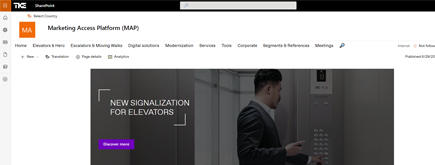
TKE SharePoint rebranding
TKE, a global elevator leader, consulted with NIFTIT to overhaul their SharePoint site for the Asia Pacific team. Enhanced search, mobile usability, and multilingual interface ignited innovation.

Camarena Health
NIFTIT's expertise in advanced UI/UX design combined with the functionality of Microsoft 365 transformed Camarena Health's digital landscape, driving efficiency and engagement.
The New York Metropolitan Transportation Council (NYMTC)
Discover how NIFTIT improved data access and enhanced collaboration for NYMTC by leveraging SharePoint, optimizing data connections, and orchestrating business automation workflows.
NIFTIT LLC
85 Delancey St, 2nd Floor, New York, NY 10002, USA 1-848-272-0977
How We Exported an Entire SharePoint 2016 Intranet to Disk Using PowerShell
By
 Philac N.
Published 3 months ago
~3 minute read

When migrating a SharePoint 2016 on-premises environment to SharePoint Online, most organizations reach for commercial tools like Sharegate or the free SharePoint Migration Tool (SPMT). But what do you do when your legacy site is behind ADFS claims-based authentication and none of the usual approaches work?
You write your own export script.
The Problem
Our client had a SharePoint 2016 intranet secured with ADFS. When we tried to use CSOM (the Client Side Object Model) remotely, every connection returned a 403 Forbidden — because ADFS expects a SAML token, not basic Windows credentials.
PnP PowerShell? Same issue. No clean way to authenticate remotely against an ADFS-secured SP2016 farm without significant infrastructure work.
The solution was simpler than expected: run the script directly on the SharePoint server itself.
The Approach
When you run PowerShell on the SharePoint 2016 server, you have access to the SharePoint Server-Side Object Model (Microsoft.SharePoint.PowerShell snapin). This bypasses authentication entirely — the running process has direct access to the content database. No tokens, no ADFS, no CSOM.
One more wrinkle: even running on the server, [DOMAIN]\Administrator was not a site collection administrator on all subsites. The script would hit "Access is denied" when trying to enumerate subsites.
The fix: open the site using the farm system account's user token, which has full access regardless of site-level permissions.
$site         = Get-SPSite $siteUrl
$elevatedSite = New-Object Microsoft.SharePoint.SPSite(
                    $siteUrl,
                    $site.SystemAccount.UserToken
                )
$rootWeb = $elevatedSite.RootWeb
This pattern is then passed recursively to every subsite, so the entire hierarchy is accessible without having to manually grant permissions first.
What the Script Exports
The script walks the entire site collection — root site and all subsites — and produces a clean folder structure on disk:
C:\SP-Export\
  [Site Name]\
    Documents\                  <- Document library files, full folder tree
    Site Assets\
    [SubSiteName]\              <- Subsite
      Shared Documents\
      Announcements.csv          <- Lists exported as CSV
      Tasks.csv
    [SubSiteName]\              <- Another subsite
      Policies\
      ...
For every document library, files are downloaded with their original Created and Modified timestamps preserved. For every list, items are exported to CSV with all visible fields included, paged 500 rows at a time for large lists.
System libraries (Form Templates, Style Library, hidden lists) are automatically skipped. System subfolders (Forms, _catalogs) are skipped inside libraries. The output is clean content only.
A report CSV is generated alongside the export, logging every file downloaded, every list exported, and every error encountered.
Key Technical Details
1. Server-Side OM, not CSOM No authentication needed. Runs as the logged-in Windows user with elevation via the system account token.
2. Timestamps preserved
$file.TimeCreated and $file.TimeLastModified are set on the local file using [System.IO.File]::SetCreationTime() and SetLastWriteTime().
3. Large lists handled
SPQuery with RowLimit=500 and ListItemCollectionPosition pagination ensures lists with thousands of items are fully exported.
4. Recursive subsite traversal
Each subsite is opened as a fresh elevated SPSite to avoid access denied errors on sites with broken permission inheritance.
5. Minimal footprint No third-party modules. Just the SharePoint snapin that ships with every SP2016 server.
The Result
First run against our client's intranet: complete export with only 2 errors — both were ghost file references in Site Assets (broken JS files that existed as metadata but had no actual content). Every real document, every list item, every subsite: captured.
The export serves as both a migration source and a permanent archive backup of the SP2016 environment before decommission.
When to Use This Approach
- SharePoint 2016 or 2013 on-premises behind ADFS
- CSOM/PnP remote connection blocked by authentication
- No budget for Sharegate or similar tools
- Need a clean file-system backup before decommission
- Partial migration: SPMT for the bulk, script for the gaps