
Discover
What we do
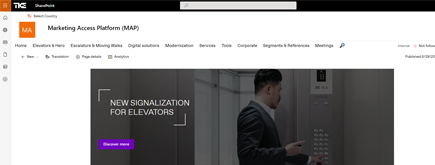
TKE SharePoint rebranding
TKE, a global elevator leader, consulted with NIFTIT to overhaul their SharePoint site for the Asia Pacific team. Enhanced search, mobile usability, and multilingual interface ignited innovation.
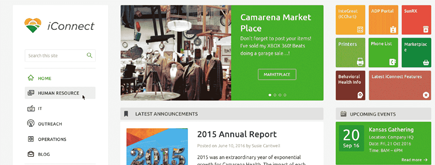
Camarena Health
NIFTIT's expertise in advanced UI/UX design combined with the functionality of Microsoft 365 transformed Camarena Health's digital landscape, driving efficiency and engagement.
The New York Metropolitan Transportation Council (NYMTC)
Discover how NIFTIT improved data access and enhanced collaboration for NYMTC by leveraging SharePoint, optimizing data connections, and orchestrating business automation workflows.
NIFTIT LLC
85 Delancey St, 2nd Floor, New York, NY 10002, USA 1-848-272-0977
SharePoint Agents Without Licensing Everyone: Setup and Billing
By
 Khoa Q.
Published 3 hours ago
~11 minute read

Your HR team has a SharePoint site full of policies, benefits guides, and onboarding checklists. Someone suggests adding a Copilot agent so staff can simply ask questions. Then the licensing quote arrives: a Microsoft 365 Copilot seat for every employee, for a tool most of them will use a few times a month.
You do not need to license everyone. Microsoft lets employees without a Copilot license use SharePoint agents on a pay-as-you-go basis, billed per question to an Azure subscription. Only the person who builds the agent needs a full seat.
This article covers what IT needs to configure, why the creator still needs a license, how billing policies and capacity packs fit together, and the practices we use to keep cost and data exposure under control. For the broader picture of billing Copilot Chat and Copilot Studio agents, see our article on Copilot pay-as-you-go billing policies. This one focuses on SharePoint agents, which have their own rules.
Who needs a license and who does not
SharePoint agents have two kinds of users, and they have different requirements:
- Creators need a Microsoft 365 Copilot license, plus permission to add files to the SharePoint site.
- Users can configure and chat with an existing agent if they either hold a Copilot license or are covered by a pay-as-you-go (PAYG) billing policy.
Here is how the combinations play out:
- No licenses, no PAYG: nobody can create or use agents.
- PAYG only: unlicensed users in scope can use agents, and usage is billed to Azure. Nobody can create new agents.
- Licenses only: licensed users can create and use agents. Everyone else is locked out.
- Both: licensed users build and use agents at no extra cost, and unlicensed users in scope use them on PAYG.
There is nothing to activate separately. Once a user is licensed or covered by a billing policy, agents appear automatically on eligible sites where that user has permissions.
Why the agent creator still needs a Copilot license
PAYG covers consumption, not authoring. The meter bills each interaction with an existing agent, but Microsoft only allows agent creation for users who hold a Microsoft 365 Copilot license. No billing policy, PAYG setting, or capacity pack unlocks the create action.
In practice, this means:
- Budget for at least one license. The developer, site owner, or power user who builds and maintains agents needs a Copilot seat.
- Keep the creator group small. Agents are built rarely and used often, so one or two licensed builders can usually support an entire department.
- Licensed users cost nothing extra. Their interactions with agents are included in their license and are never billed through PAYG.
- Unlicensed users can still configure. A PAYG-covered user can adjust an existing agent's settings. They just cannot create a new one.
If no one in the tenant has a Copilot license yet, PAYG alone will not get you started. License the builder first.
How SharePoint agent usage is billed
Usage is measured in Copilot Credits. Each SharePoint agent answer uses 12 credits: 10 for grounding on your tenant data and 2 for the generated answer. Charges appear under the Copilot Studio meter on your Azure invoice, and Azure Cost Management breaks them out by feature.
There are two ways to pay:
- The PAYG meter. Every credit is billed to your Azure subscription at the per-credit rate, commonly cited at about $0.01 USD. That works out to roughly $0.12 per question.
- A Copilot Studio capacity pack. A prepaid, tenant-wide subscription of 25,000 credits per month, commonly cited at about $200 USD per pack at list price. Credits reset monthly, do not roll over, and are not assigned to individual users.
When a pack is paired with PAYG, prepaid credits are used first. Once they run out, usage switches to PAYG automatically, with no interruption for users.
One important limitation: Microsoft's standalone "Copilot credit policy," which uses a capacity pack without any Azure subscription, currently applies to Copilot Chat only. For SharePoint agents, a PAYG billing policy connected to Azure is still required.
What it costs in practice
Using 12 credits per question and the list rates above:
- 50 staff asking 5 questions a month: about 3,000 credits, or roughly $30 on PAYG.
- 100 staff asking 10 questions a month: about 12,000 credits, or roughly $120 on PAYG.
- 200 staff asking 10 questions a month: about 24,000 credits. One capacity pack plus PAYG for overage starts to make sense.
- 300 staff asking 15 questions a month: about 54,000 credits. Two packs plus PAYG for overage is likely the better fit.
At list price, a pack breaks even against PAYG at about 20,000 credits a month, or roughly 1,700 questions. Below that, PAYG alone is usually cheaper. Nonprofit and negotiated pricing can be much lower, which moves the break-even point down, so confirm current rates with your Microsoft partner.
Billing policies: your access control and your budget
A billing policy decides who can use SharePoint agents on PAYG and which Azure subscription pays for it. Only users in the security group assigned to the policy get access, so the policy doubles as your access control.

Each policy defines:
- A name, ideally tied to a department or cost center, such as "SP Agents - HR."
- An Azure subscription and resource group. These cannot be changed after the policy is created.
- A region, which determines where tenant ID and usage data are stored.
- A scope: all users, or one specific security group.
- An optional budget, reset monthly, quarterly, or yearly, with alerts at the percentages you choose.
Limits to plan around:
- Up to 10 billing policies per tenant.
- One security group per policy today. Microsoft says support for multiple groups is coming.
- Licensed users in the group are never charged through the policy.
Because each policy can point to its own subscription or resource group, you can charge HR, Finance, and Operations back separately. Create one security group and one policy per department, and costs land in separate buckets in Azure Cost Management.
If your tenant set up PAYG for SharePoint agents early, under Settings, then Org settings, then Pay-as-you-go services, that legacy setup applies to all users. Disconnect it first, then create a new group-scoped policy under the Copilot billing settings. Until you migrate, you cannot limit access to a specific group.
What IT needs before starting
Most setup failures come from a missing role or Azure permission. Gather these first:
- A billing admin role: Billing Administrator, AI Administrator, or Global Administrator.
- SharePoint Administrator rights to set up SharePoint agents as a billed resource.
- Global Administrator, only if you plan to activate a capacity pack.
- An Azure subscription in the same tenant as Microsoft 365. You can create one during setup.
- A dedicated resource group for agent billing.
- Owner or Contributor on both the subscription and resource group. This is only needed during setup.
- A security group containing the staff who should use agents on PAYG.
- One Microsoft 365 Copilot license for the agent creator.
- Edit or Owner permissions on the target site for the creator.
Step by step: set up SharePoint agents on PAYG
Step 1: Create the billing policy
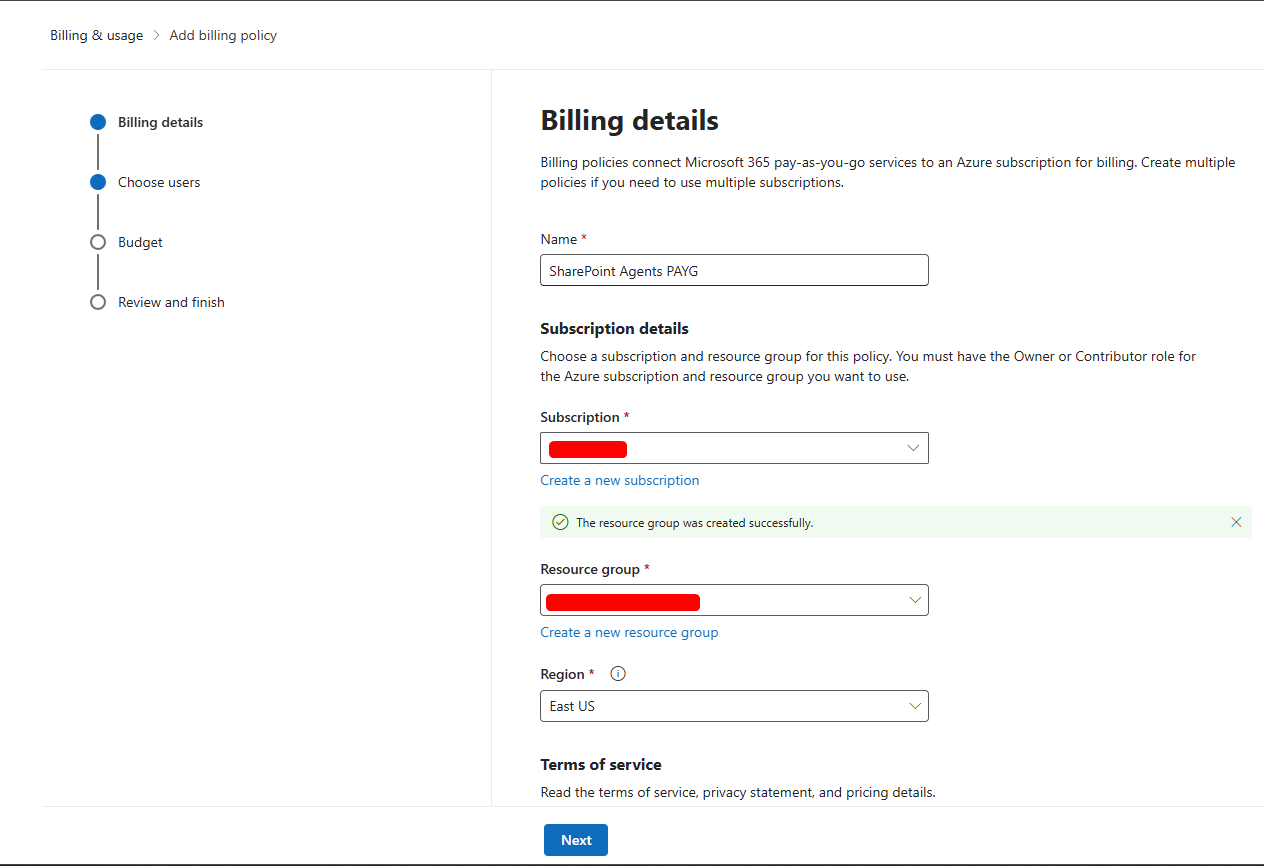
- Sign in to the Microsoft 365 admin center and go to Copilot, then Cost management.
- In the banner at the top of the dashboard, select Classic Billing & usage.
- On the Billing policies tab, select Add a billing policy.
- Enter a name, then select the Azure subscription, resource group, and region.
- Accept the pay-as-you-go terms of service and select Next.
- On Choose users, select Specific group and add your staff security group.
- On Budget, set a limit, a reset period, alert recipients, and alert thresholds such as 50%, 80%, and 100%.
- Review the details and select Create policy.
Step 2: Connect the policy to SharePoint agents
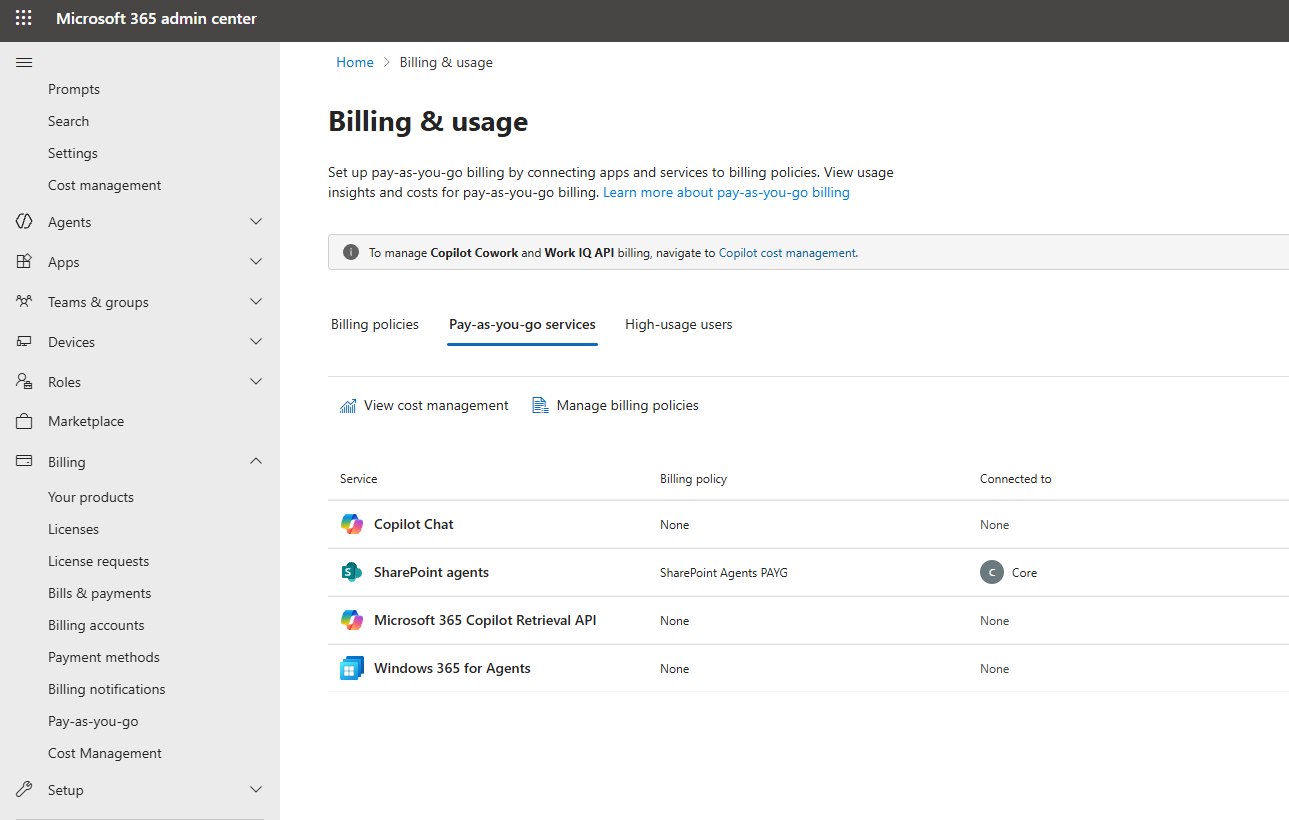
- On the confirmation page, select Connect your services, or open the Pay-as-you-go services tab on the Billing & usage page.
- Select SharePoint agents.
- In the Manage billing policy connections panel, toggle your policy to Connected.
- Select Save, then Done.
Step 3: Add a capacity pack (optional)
- In the admin center, go to Marketplace, search for "Microsoft Copilot Studio," and buy the number of packs you need.
- In the Power Platform admin center, go to Licensing, then Copilot Studio, open Manage capacity, and allocate the credits.
- Under Capacity overages, choose to bill overage to your PAYG billing plan so users are not cut off.
- Turn on notifications for when capacity usage nears its limit.
Microsoft documents capacity pack setup mainly for Copilot Chat. Confirm with your Microsoft partner how pack credits will apply to SharePoint agents in your tenant before you buy.
Step 4: License the creator and build the agent
- Assign a Microsoft 365 Copilot license to the agent creator.
- Confirm the creator has Edit or Owner permissions on the site.
- From the site, use Copilot to create the agent, scope its sources to the libraries and pages it should answer from, and write clear instructions.
- Test the agent, then share it with staff from the site or in Teams.
Microsoft is moving SharePoint agents to a new agent experience, so the exact creation screens may differ from older tutorials.
Step 5: Validate access
- Sign in as an unlicensed user who is in the security group and confirm the agent works.
- Sign in as an unlicensed user who is not in the group and confirm access is blocked.
- After 24 to 48 hours, check Azure Cost Management to confirm charges are landing in the right resource group.
Always test with real unlicensed accounts. Testing with your own licensed account proves nothing about the experience your employees will have.
Best practices
Lock down content before launch
- Audit permissions first. Agents answer using each user's own access. Any file a user can open, the agent can summarize for them.
- Separate sensitive content. Move confidential HR material, such as compensation, investigations, and leave records, to restricted libraries or a separate site the agent does not use as a source.
- Remove broad sharing. Look for "Everyone except external users" grants and organization-wide sharing links on the source site.
- Apply sensitivity labels where your licensing supports them, so protected content stays protected in agent answers.
Control cost
- Set a budget on every policy, with alerts at 50%, 80%, and 100%. Remember that alerts warn you; they do not stop spending.
- Use a dedicated resource group so agent costs are easy to isolate and report on.
- Start with PAYG only. Measure one or two months of real usage before committing to capacity packs.
- Review usage monthly. Unexpected spikes usually mean an agent is being used beyond its intended audience.
Scope access deliberately
- Scope by security group, not all users, even if you plan to roll out broadly later.
- Use one policy per department when you need chargeback.
- Keep creators to a small licensed group, and document who owns each agent.
Design the agent for accuracy
- Narrow the sources. Point the agent at specific libraries or pages rather than a whole site.
- Write explicit instructions, including what the agent should not answer and where to escalate, such as "Contact HR for individual benefits questions."
- Keep source content current. Outdated policies produce outdated answers, so assign a content owner.
Roll out with a pilot
- Pilot with a small group for two to four weeks and collect feedback on answer quality.
- Announce the agent with clear examples of what to ask.
- Pin it in Teams or on the site home page so staff can find it.
- Track adoption in the Microsoft 365 admin center under Reports, then Usage, then Microsoft 365 Copilot, then Agents.
Troubleshooting
"I do not see the pay-as-you-go option." The setting moved. Look under Copilot, then Cost management, then Classic Billing & usage, not under Org settings. Also confirm your account has the Billing Administrator, AI Administrator, or Global Administrator role.
"Unlicensed users still cannot use the agent." Check that the user is a direct member of the policy's security group, the policy is connected to SharePoint agents and not only Copilot Chat, and the user has at least read access to the site. Group membership changes can take time to apply.
"Can an unlicensed user create an agent if PAYG is on?" No. Creating an agent requires a Microsoft 365 Copilot license.
"Can we use a capacity pack without Azure?" For Copilot Chat, yes. For SharePoint agents, no. A PAYG billing policy connected to Azure is still required.
"Can we change the Azure subscription on an existing policy?" No. Create a new policy with the new subscription, connect it, then disconnect and delete the old one.
The takeaway
SharePoint agents on pay-as-you-go put AI-powered answers in front of every employee for the cost of one creator license and a few cents per question. The recipe is simple: license the builder, scope a billing policy to a security group, set a budget, and clean up permissions before launch.
The part most organizations skip is the permissions review. An agent will faithfully repeat whatever a user is allowed to see, including content that was overshared years ago. Fix that first, and the rest is configuration.
If you are planning a SharePoint agent for HR, IT help, or policy questions, talk to NIFTIT. We help small and mid-sized organizations design billing policies, clean up permissions, build the agent, and run a pilot so you know exactly what a full rollout will cost.
Sources: Microsoft Learn, "Get started with agents in SharePoint," "Use agents with pay-as-you-go billing," "Set up and manage pay-as-you-go billing in the Copilot node of the Microsoft 365 admin center," and "Use Copilot Studio capacity packs for Microsoft Copilot Chat and SharePoint agents." Pricing figures are approximate US list prices and change often, so confirm current and nonprofit rates with your Microsoft partner before you budget.