
Discover
What we do
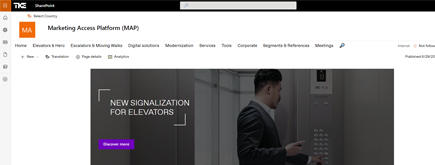
TKE SharePoint rebranding
TKE, a global elevator leader, consulted with NIFTIT to overhaul their SharePoint site for the Asia Pacific team. Enhanced search, mobile usability, and multilingual interface ignited innovation.
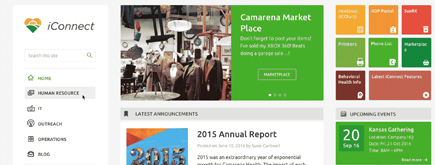
Camarena Health
NIFTIT's expertise in advanced UI/UX design combined with the functionality of Microsoft 365 transformed Camarena Health's digital landscape, driving efficiency and engagement.

The New York Metropolitan Transportation Council (NYMTC)
Discover how NIFTIT improved data access and enhanced collaboration for NYMTC by leveraging SharePoint, optimizing data connections, and orchestrating business automation workflows.
NIFTIT LLC
85 Delancey St, 2nd Floor, New York, NY 10002, USA 1-848-272-0977
SharePoint Migration Tool (SPMT): Setup and Limits
By
 Khoa Q.
Published an hour ago
~4 minute read

The SharePoint Migration Tool, or SPMT, is usually the first migration tool teams try, because it is free and it comes from Microsoft. It works well for the right project and badly for the wrong one. This guide shows how to set it up, where it stops, and how to tell which kind of project you have.
What SPMT is
SPMT is a free Windows application that copies content from on-premises SharePoint Server and from file shares into SharePoint, OneDrive or Teams in Microsoft 365. It copies content. Your source files stay where they are, so you can run a pilot without risking the original.
Microsoft documents support for SharePoint Server 2010, 2013, 2016 and 2019 as sources, and for common sign-in methods including NTLM, Kerberos, forms, ADFS and multifactor authentication. It can also carry over SharePoint Server 2010 out-of-the-box workflows and SharePoint Designer 2010 and 2013 workflows, which Microsoft converts toward Power Automate.
When SPMT is a good fit
SPMT does its best work when the project is simple and the team has time to supervise it.
- One farm, standard sites. Team sites and document libraries with few customizations move cleanly.
- Modest volumes. A few hundred gigabytes, not many terabytes, so one or two machines can handle it.
- File shares to document libraries. Fine for small and mid-size shares. Microsoft now steers large file share projects to Migration Manager.
- An admin who can babysit the run. SPMT runs from a machine you control, so someone has to watch it, read the reports and rerun failures.
If that describes your project, SPMT may be all you need.
How to set up SPMT
- Check the machine. Microsoft recommends a 64-bit quad-core processor, 16 GB of RAM, an SSD with 150 GB free, a 1 Gbps network, Windows 10 or Windows Server 2016 or later, and .NET Framework 4.6.2 or later. The minimum is half the memory and a regular disk, and you should expect slow runs.
- Open the network. The machine needs outbound access to Microsoft 365 sign-in, Microsoft Graph, Azure storage queues and blobs, and your *.sharepoint.com tenant. Locked-down firewalls are a common reason for a failed first run.
- Line up permissions. On the destination you need to be a SharePoint or OneDrive admin or a site admin. On the source you need an account with Read access to everything you are moving. Microsoft also offers a dedicated Microsoft 365 Migration Administrator role with narrower rights.
- Install and sign in. Download SPMT from Microsoft, install it, and sign in to your Microsoft 365 tenant.
- Pick the source. Choose SharePoint Server or a file share, then enter the site address or folder path.
- Pick the destination. Map each source site, library or folder to a SharePoint site and library, a OneDrive, or a Teams channel.
- Run a pilot first. Migrate one small, representative site and read the report before you start the real batches.
Limits and pitfalls to plan for
Most SPMT problems come from the project, not the tool. These are the ones we see most.
- It is not a tenant-to-tenant tool. SPMT reads from on-premises SharePoint and file shares. Moving between two Microsoft 365 tenants, or from Google Drive, Box or Dropbox, calls for other tools such as Migration Manager.
- Customizations do not come along for free. Custom solutions, heavy scripting, third-party web parts and InfoPath forms usually need to be rebuilt, not copied. Our post on why SharePoint migrations keep failing covers the hidden dependencies that surface after go-live.
- A copied site is not a modern site. SPMT moves content. It does not redesign information architecture, clean up permissions or retire stale sites. That decision comes first, as we explain in modernize, rebuild or retire.
- Users and permissions need a mapping plan. Accounts that do not exist in your Microsoft 365 tenant cause permission gaps and wrong author names unless you map them in advance.
- Platform limits still apply. Long paths, very large files and blocked characters can fail items in the destination. Run the pre-migration scan and check Microsoft's current SharePoint limits before you commit to a schedule.
- Metadata and lookups can break. Lookup columns and managed metadata often need extra work, which we cover in migrating lists with metadata.
- Nobody owns the cutover. Plan the freeze window, the final incremental run, redirects and user communication. SPMT does not manage any of that for you.
When to bring in a migration partner
SPMT is a copy engine. A partner adds the planning and the cleanup around it. Consider help when any of these is true:
- You have customizations, workflows or InfoPath forms that must keep working.
- The data runs to many terabytes, or the cutover window is measured in hours.
- Permissions are messy and you want them fixed, not copied.
- Compliance requires an audit trail, or a failed migration would be costly.
- Your team does not have the admin time to supervise weeks of runs.
The cost of a short assessment is small next to the cost of redoing a migration that missed its dependencies.
Planning a SharePoint or Microsoft 365 migration? We help teams plan, migrate, and go live without surprises. Talk to our migration team.